
 Free
Free
PC sensor panel: choose a screen and set it up
A PC sensor panel shows live hardware readings on a screen beside your monitor or inside your case. Start with a spare HDMI display if you have one. CLU VIEW supplies the free software; USB-only smart screens need a separate compatibility check.
Windows 10 & 11 / Linux • Free software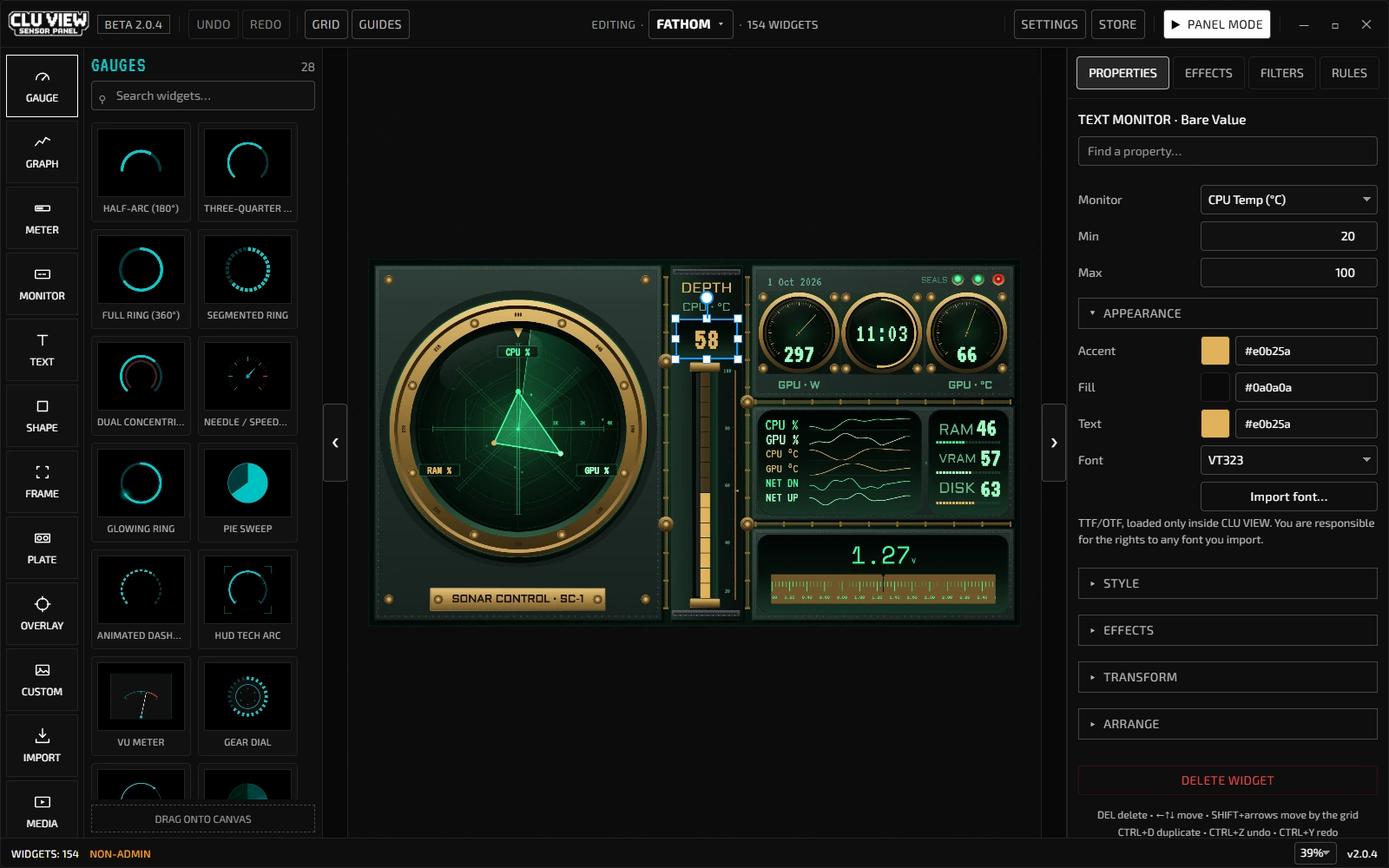
> What is a sensor panel?_
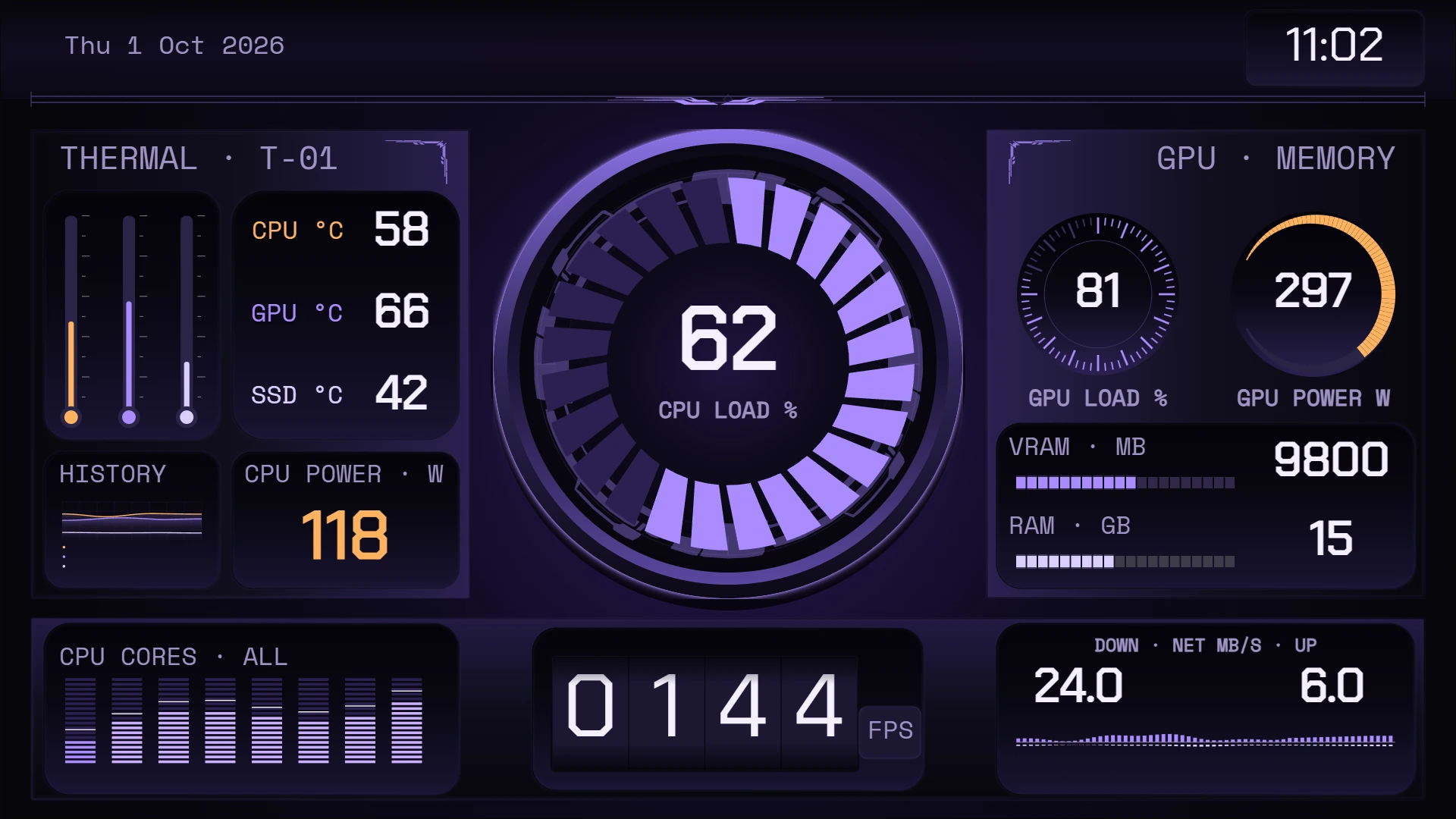
A sensor panel is a dedicated screen that shows live hardware data from your PC in real time: CPU temperature, GPU load, RAM usage, fan speeds, FPS, and more. Instead of alt-tabbing to check temps mid-game or running a monitoring overlay, you glance at a separate display.
People also call them PC stat screens, stats displays, system monitor dashboards, or hardware monitoring panels. The idea is the same: one screen dedicated to showing you what your PC is doing right now.
Sensor panels are popular with PC builders, overclockers, and anyone who wants to keep an eye on thermals without interrupting their workflow. Many people mount small screens inside their case as part of the build aesthetic.
> What screen should you use?_
Small HDMI display
An HDMI screen takes its video signal from your GPU. Some use USB for power, so check both connections and the mounting space before buying one. Set it up as an extended desktop display.
Spare Monitor
Any monitor Windows recognises works. A spare 15–24 inch screen on your desk is the simplest setup, with no mounting required.
Turing / XuanFang USB screen
These smart screens receive images over USB and do not appear as ordinary desktop monitors. CLU VIEW's direct output is experimental. Check the Turing and XuanFang guide for the setup and limitations.
Lian Li 8.8-inch screen
This USB screen has its own output setup. Read the Lian Li 8.8-inch guide before choosing software or preparing a layout.
Match the canvas to the display's pixel resolution and orientation. A 480×320 layout has much less room for readable labels than a 1920×1080 layout. Screen size alone does not tell you whether a USB device is compatible.
> What stats can you display?_
CPU: temperature, usage per core, clock speed, power draw
GPU: temperature, load, VRAM usage, clock speed, fan speed
Memory: RAM usage, available, and total
Storage: disk read/write speeds, usage, temperature
Network: upload and download speeds per interface
Fans: RPM for case, CPU, and GPU fans
FPS & Frame Timing: frames per second and frame time in supported games
Battery & Power: charge level, wattage, and voltage where available
> How to build a sensor panel with CLU VIEW_
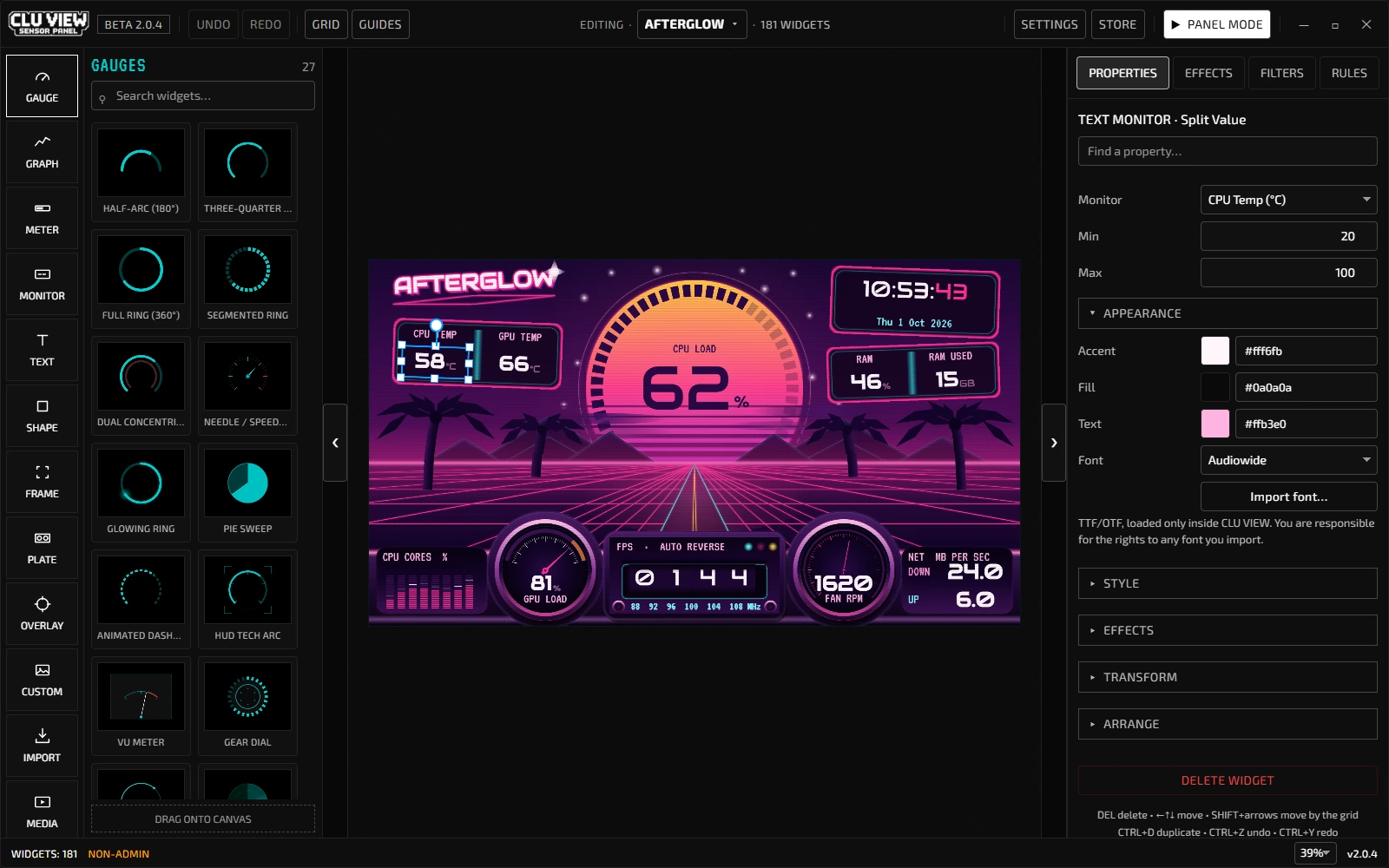
CLU VIEW is free sensor panel software for Windows and Linux, with a visual editor and 216 widget styles. Panel Mode displays your layout on a desktop screen. The steps below use Windows; the Linux installation guide covers its packages and first run.
01 Download CLU VIEW and install it
02 Connect your second display so Windows recognises it
03 Drag widgets onto the canvas and bind them to sensors
04 Click Panel Mode and select your target display
Available readings depend on your hardware and operating system. Follow the CLU VIEW setup guide for Windows sensor requirements and screenshots, or check Linux sensor support before choosing readings for your layout.
> Choose your next step_
| Your task | What to check | Guide |
|---|---|---|
| Compare free software | Check editors, sensor sources and display support. | Free sensor panel software |
| Start with a template | Find a CLU VIEW layout and learn how to import it. | Sensor panel templates |
| Move from AIDA64 | Check what transfers and which parts need rebuilding. | Switch from AIDA64 SensorPanel |
| Use Linux | Check available readings and choose an installation package. | Linux sensor support and installation steps |
> Frequently asked questions_
▶Does a sensor panel affect gaming performance?
A sensor panel uses CPU, GPU and memory resources. The effect depends on the layout, effects and update rate, as well as your PC and game. Compare the same game scene with the panel running and closed; check frame times as well as average FPS.
▶Do I need to pay for sensor panel software?
CLU VIEW's public Windows and Linux builds are free. Optional member template and widget packs are separate. For other tools and their sensor requirements, read the free sensor panel software comparison.
▶What size screen works best?
Choose a screen that fits your mounting space and leaves the readings legible at your viewing distance. Match your layout to its resolution and orientation. HDMI displays and USB-only smart screens use different output methods, so check the connection before buying.
▶Can I use it without a second screen?
Yes. You can keep a panel on your main desktop display. A second screen is useful when you want the readings visible without covering your other windows.
[ START HERE ]
For downloads, screenshots, requirements, and FAQ, go to CLU VIEW sensor panel software. For installation steps, read the secondary-screen setup guide. If you are replacing an AIDA64-style workflow, read the free AIDA64 SensorPanel alternative guide.