
CLU VIEW is a free alternative for the dashboard part of AIDA64 SensorPanel: arranging live hardware readings on a display. AIDA64 also includes diagnostics and benchmarks, so first decide which part of it you actually need.
Checked against the linked official documentation on 7 September 2026. MR.CLU develops CLU VIEW. This article compares documented features and shows CLU VIEW’s editor; it does not claim measured performance superiority.
Both have visual editors
AIDA64’s SensorPanel documentation describes graphs, gauges, images and dynamic text tied to sensor data. You can compose panels in its editor. An ordinary SensorPanel does not require HTML coding.
In CLU VIEW, choose widgets from the library and arrange them on the canvas. Connect each one through Properties, then edit colours, ranges and other supported options. Custom image gauges let you supply a sequence of artwork that changes with the reading.
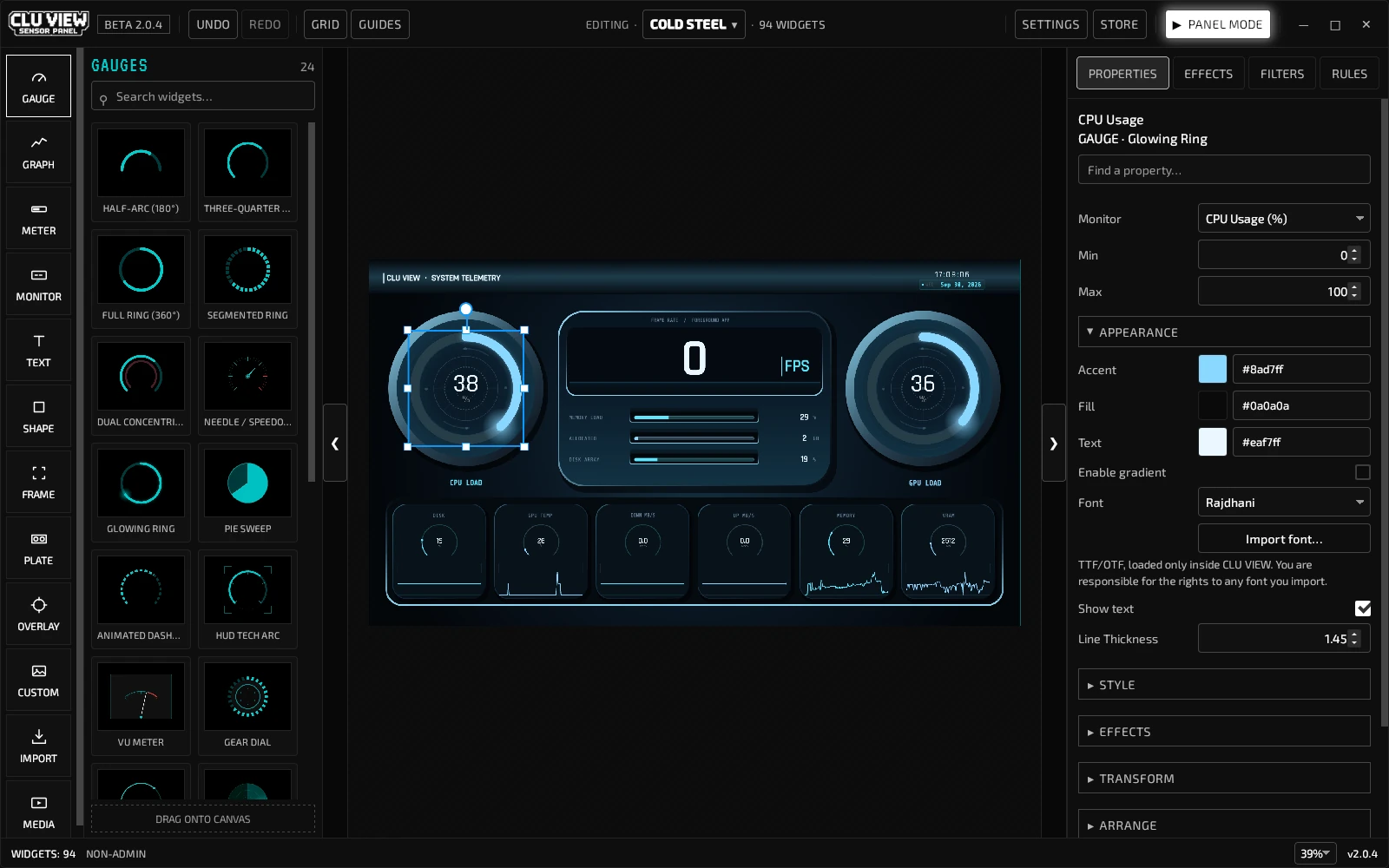
What you gain, and what needs rebuilding
CLU VIEW’s public Windows and Linux builds are free. It includes 14 widget types, 216 styles, profiles and Panel Mode. Optional member packs are available separately from the free software. Linux sensor coverage differs from Windows; the Linux guide describes those limits.
An AIDA64 .sensorpanel file is not a CLU VIEW profile. Rebuild the arrangement with CLU VIEW widgets or start with a compatible template. Keep any source images you are entitled to reuse. The migration guide walks through that process.
If your work depends on AIDA64’s diagnostics, stress tests or a specific reading, check that requirement separately. A layout app is not evidence that an equivalent hardware diagnostic exists.
Try one small panel before moving everything
Create a new profile at your display’s resolution. Add a CPU usage gauge and a GPU temperature text monitor. Confirm that both update, save the profile, then reopen it. Finally, try Panel Mode on the intended desktop display. The setup guide includes screenshots for each stage.
Match the sensor range to the reading: 0–100 for percentage usage, or a temperature range appropriate to the scale you want to show. If you reuse artwork with printed numbers, those numbers need to agree with the widget settings.
Display support depends on the connection
Normal Panel Mode uses a display recognised by your operating system. Direct USB smart-screen output is a separate feature. CLU VIEW’s Turing/XuanFang output remains experimental, and no physical revision is certified by this article. Check the USB-screen guide before choosing that route.
Price and ongoing access
The AIDA64 store lists Extreme at US$65.95 for three PCs, with a 30-day trial, as checked for this article. Consult its checkout and licence terms for current details. CLU VIEW’s public app is free; the MR.CLU membership offers templates, widgets and early builds for US$7/month plus applicable taxes. New drops arrive when ready.
For other approaches, read the free software comparison. If CLU VIEW fits the job, download the Windows or Linux build and test a small layout before recreating your full panel.