Start in Settings
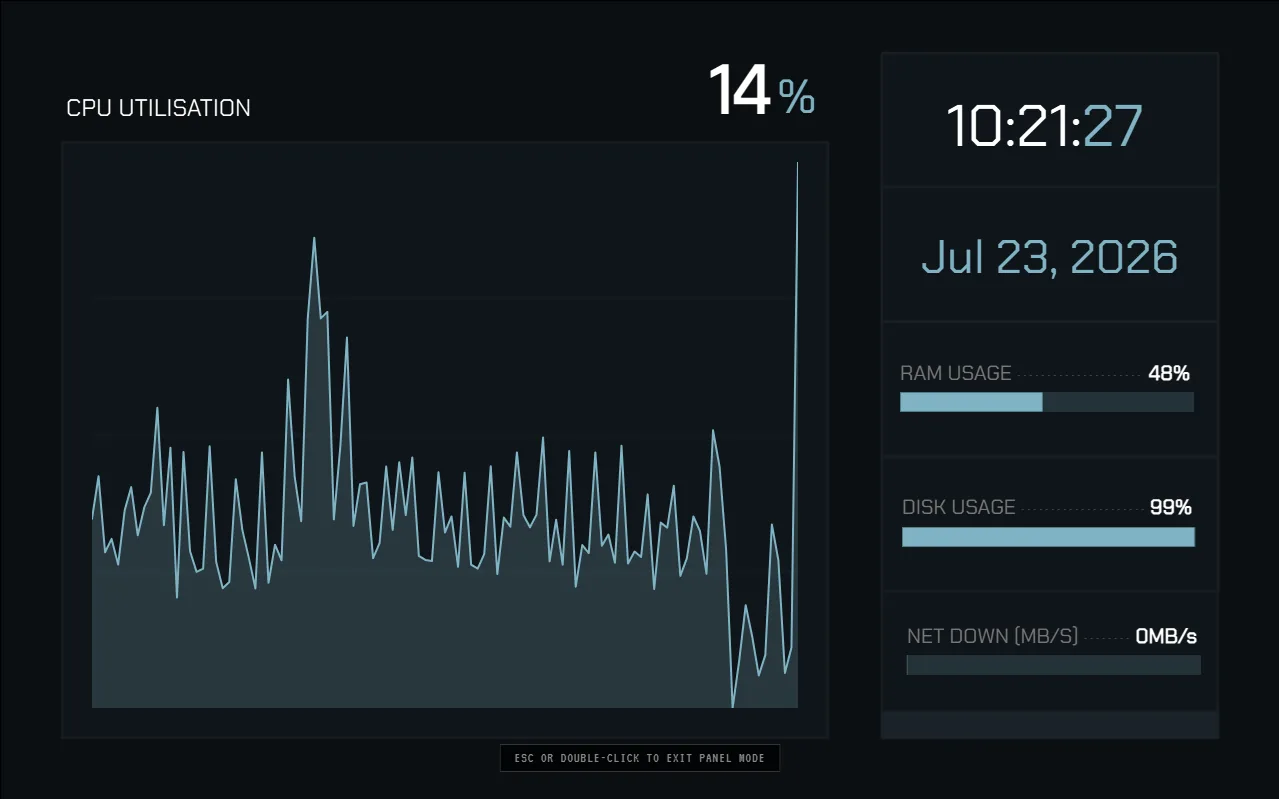
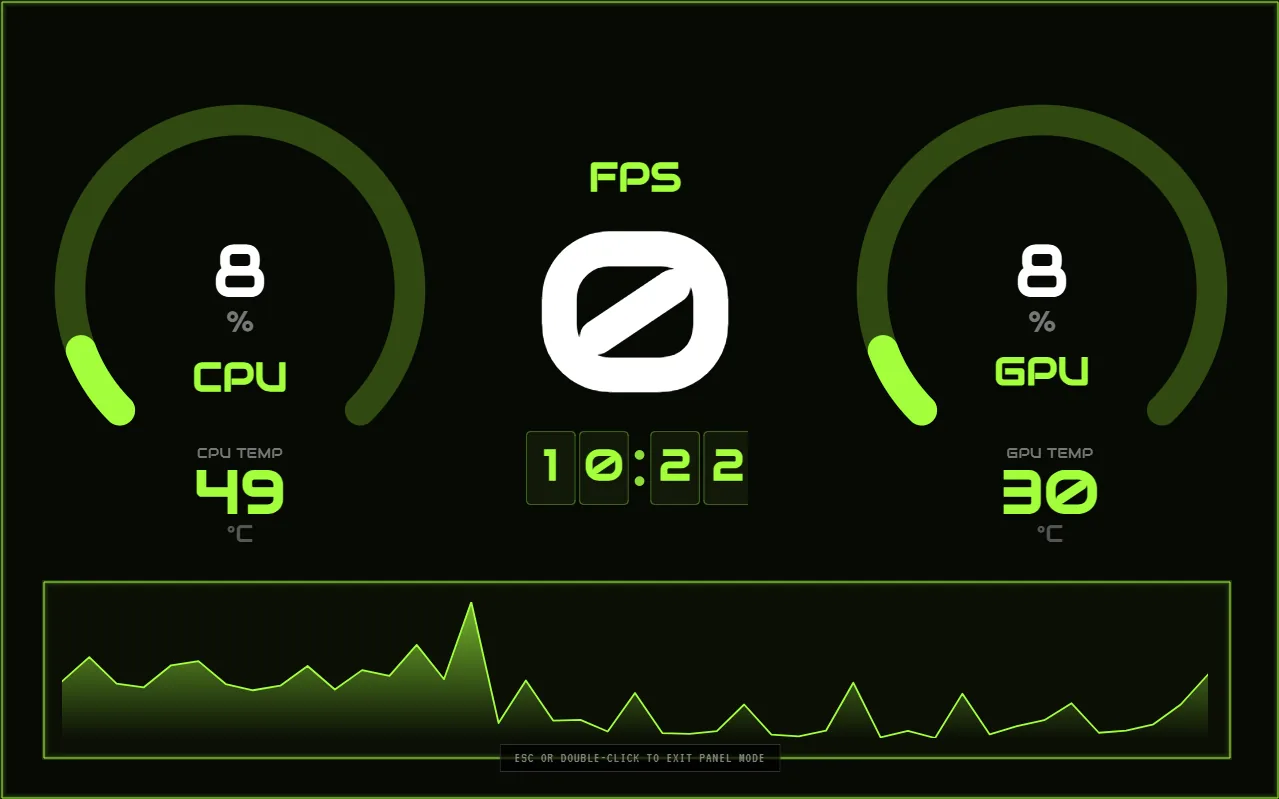
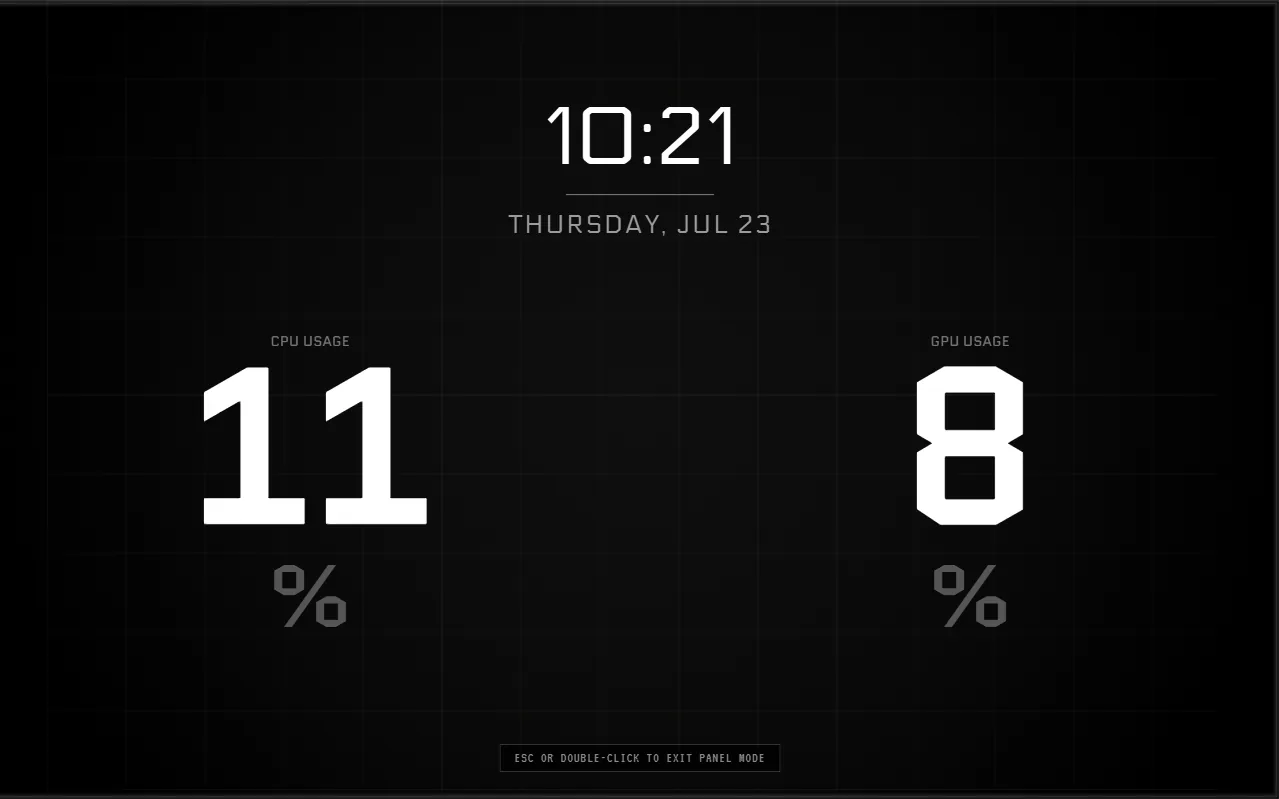
The editor screenshots show CLU VIEW 2.0.4 with Cold Steel from the Bulkhead pack. The app is free; Bulkhead is a paid pack in the CLU Store. The same controls work with the included starter templates. These captures use Linux; some hardware and startup controls differ on Windows.
When you open CLU VIEW for the first time, select Settings in the top toolbar beside Store. A few minutes here will make the editor smoother and ensure Panel Mode opens on the correct display.
Windows sensor access: PawnIO and administrator access are required for CLU VIEW’s full sensor set. PawnIO is installed with the app, so accept the one-time Full Access prompt or enable Settings → Startup → Always run as administrator. If Diagnostics reports that PawnIO is missing, repair or reinstall CLU VIEW.

Balance smoothness and resource use
Two settings have the biggest effect on how much work CLU VIEW does: Poll interval and Render mode.
Poll interval
Controls how often sensor values refresh. A shorter interval updates more often but uses more CPU; a longer interval is lighter but reacts less quickly.
Render mode
Controls animation smoothness. Smooth looks best and uses the most resources. Performance uses a more stepped refresh and keeps overhead lower.
Lowest overhead. Uses shorter graph history, skips animated widget effects and refreshes canvas filters less often.
A practical everyday choice for most dashboards.
Full antialiasing, longer graph history and eased animation.

If a reading looks wrong: leave Network Adapter and Disk Source on Auto unless CLU VIEW chooses the wrong device. On an integrated-GPU-only PC, turn off Ignore integrated GPU (iGPU). Overlay animations can also be disabled separately without changing render mode.
Choose the canvas and output display
Open Settings > Screen, then Set up beside Sensor Panel. Choose the screen you will use for Panel Mode before building your layout: CLU VIEW automatically sets and locks the canvas to that screen’s resolution so the design fits pixel-for-pixel.
- Canvas is the usable design area while you edit. Current Screen and Custom Size are useful for off-screen work and imported layouts.
- Panel Mode chooses the display that receives the borderless dashboard and aligns the canvas to its native dimensions.
If a screen is missing, select Detect screens after connecting it. The Keep the panel above other windows option keeps the finished panel above other windows.
Windows tip: set the panel to Extend these displays and use its native resolution. If the Windows taskbar changes the available area, enable auto-hide for the taskbar.
If you use a supported Turing or XuanFang-style USB smart screen, open Settings > Screen > USB Screen > Set up, select the device and use Test to confirm the correct port before enabling output. Direct USB support depends on the controller revision.

Start a layout you can keep
The profile selector sits in the centre of the top toolbar. Create a blank profile, choose a starter template, or duplicate an existing design before experimenting.
Profiles let you keep several layouts and switch between them instantly. You can also export a profile to share it, import a layout from someone else, or use the Rules engine to change profiles automatically.
Each profile keeps its own dashboard background, opacity, filters and rules. Background images can be up to 10 MB; MP4 and WebM backgrounds can be up to 250 MB. Canvas opacity changes the background layer without making the widgets transparent.
Give each profile a descriptive name such as Idle (Effects), Gaming (Performance) or Desk Panel (Landscape). Clear names make automatic rules much easier to manage later.
Moving from an older CLU VIEW: profiles exported by the 1.4.x PyQt version can be imported. Choose whether to scale the layout to the current canvas or retain its original resolution. AIDA64 .sensorpanel files use a different format and cannot be imported directly.

Add and align widgets
The library on the left contains gauges, graphs, meters, monitors, text, shapes, frames, data plates, overlays, images and media. Select a category, then click a widget to add it or drag it directly onto the canvas.
For a gauge or bar drawn from your own artwork, use the CUSTOM category. The image widgets and sprite strips tutorial covers preparing frames, building a pack and connecting it to a sensor.
Turn on Grid to show the grid and snap widgets to it and Guides to show canvas reference lines. Smart alignment guides also appear while moving or resizing widgets; they are enabled in Settings > General. Editing guides disappear in Panel Mode.


For group layouts, multi-select widgets and use the right-click menu to align their edges or centres, distribute spacing evenly, or duplicate a selection. Hold Shift while dragging to temporarily ignore grid snapping and alignment guides; hold it while rotating to snap in 15-degree steps.
Connect data and shape the design
Select a widget to open its Properties panel on the right. This is where you choose the monitoring sensor and tune the widget’s position, size and appearance.
- Monitor: choose the CPU, GPU, RAM, disk, network, fan, power or other sensor that drives the widget.
- Transform: move, resize, rotate and arrange the widget in front of or behind other elements.
- Appearance: change colours, fonts, borders, fills, labels and value ranges.
- Widget-specific options: graphs, gauges, text and media each expose controls suited to that widget.

Use effects and filters with intent
Effects apply to the currently selected widget. Use them for touches such as glow, scan lines, reflections, glitch or animation. Filters apply across the entire canvas, creating a consistent CRT, pixel, colour or distortion treatment.
Every active effect or filter adds rendering work. A few deliberate choices usually look cleaner and run better than stacking many of them. In Performance mode, static effects remain visible, animated widget effects are skipped and canvas filters refresh less often. Glow, chromatic aberration, negative and screen bulge are among the heavier full-canvas filters.


Two-profile setup: duplicate your layout. Keep one lightweight profile for gaming or heavy workloads and one effect-rich profile for idle use, then switch between them automatically with rules.
Make the dashboard react
The Rules engine watches a condition and runs an action when that condition is met. Rules can respond to sensor thresholds, running applications, the active window or a time schedule.
Conditions
Sensor above or below a threshold, process running or not running, active-window title contains text, or a time window.
Actions
Pulse a widget, change its accent colour, or switch to another dashboard profile.
Select Add Rule, give the rule a clear name, choose a condition, then choose what should happen. Set a priority when rules might compete, and use Revert on clear when a temporary accent or profile change should return to normal after the condition ends.
Example: if CPU temperature rises above 70°C, pulse the selected widget three times in red. Use Test to preview the result without waiting for the threshold.


Send the dashboard to your panel
CLU VIEW saves your work automatically, roughly 800 milliseconds after a change; Ctrl+S forces an immediate save. When the layout is ready, confirm the correct output display is selected in Settings, then select Panel Mode in the top-right corner or press F5.
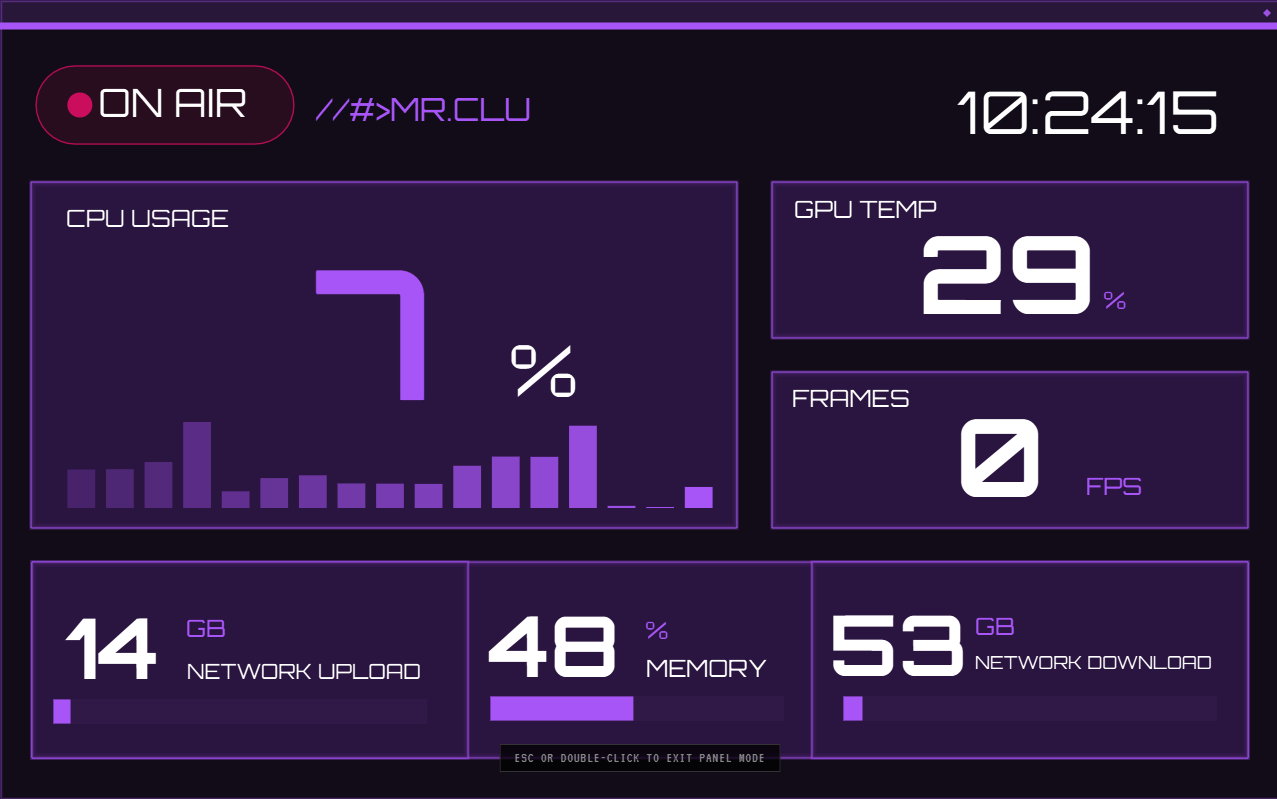
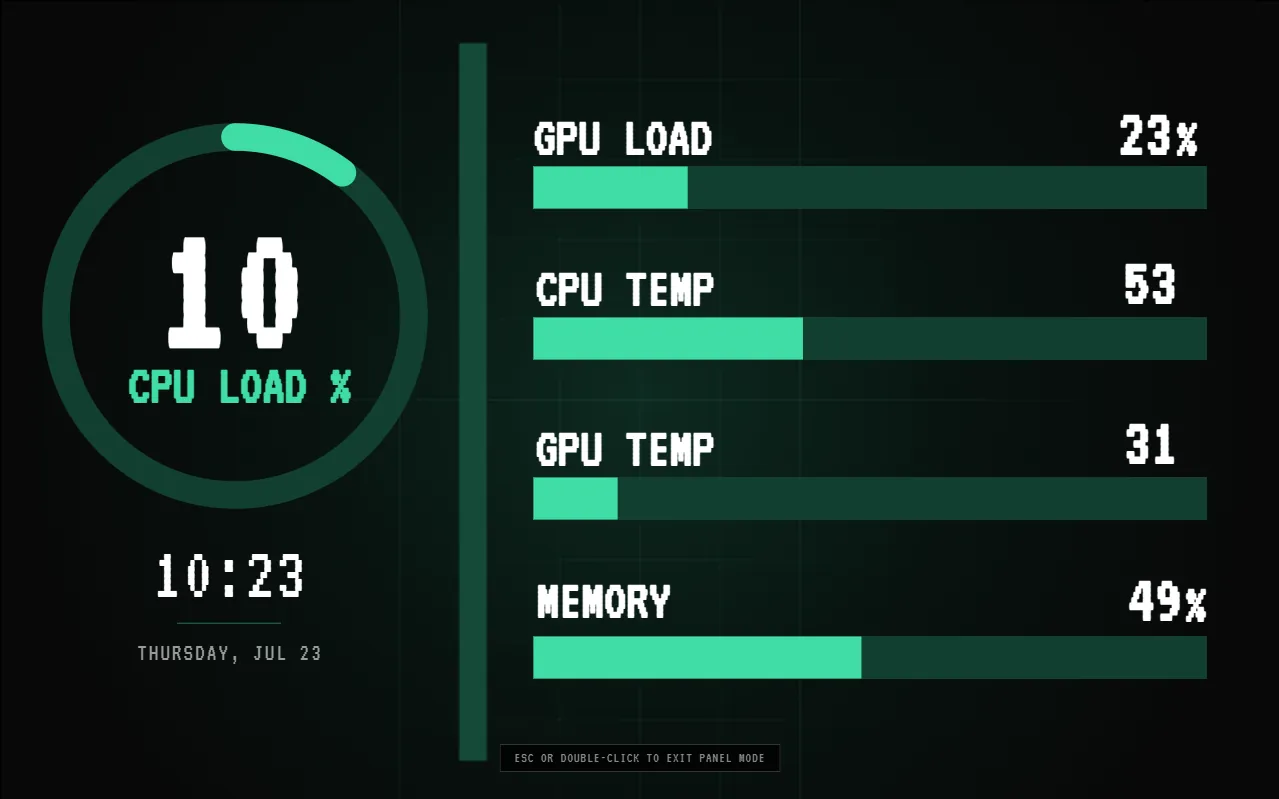
The dashboard opens borderless on the configured screen. Panel Mode is the intended way to run a finished panel: it avoids the editing interface and uses a leaner rendering path than leaving the canvas window on the secondary display.
To return to the editor, press F5, Esc or double-click the panel. Settings also includes options to start CLU VIEW with Windows, launch directly into Panel Mode and minimise the close button to the system tray.

Troubleshooting
Sensors are missing from the Monitor list
Full sensor access on Windows requires PawnIO and administrator access. PawnIO is installed with CLU VIEW; enable Always run as administrator under Settings → Startup, then restart the app. If Diagnostics reports that PawnIO is missing, repair or reinstall CLU VIEW. Some motherboard, VRM, per-core and power sensors are not exposed on every system. If a reading is still missing, share the Diagnostics report in Discord.
CPU temperature shows an orange “?”
The widget’s saved sensor is currently unavailable. Confirm PawnIO is installed, run CLU VIEW as administrator, then select the widget and choose an available CPU Package or equivalent temperature sensor in Properties. Updating to the latest build is also recommended because recent releases improved CPU temperature fallback and sensor repair.
GPU readings stay at zero on an integrated-GPU system
Open Settings → General and turn off Ignore integrated GPU (iGPU). That option is enabled by default to keep inactive onboard graphics from cluttering the Monitor list, but it should be disabled when the iGPU is your only graphics device.
Panel Mode opens on the wrong screen or does not fit
In Windows Display Settings, set the panel to Extend these displays and use its native resolution. Then return to Settings → Screen, reselect the Panel Mode display and confirm the width, height and orientation. Enable Windows taskbar auto-hide if the taskbar is reducing the usable area.
FPS is not showing
FPS monitoring needs elevated access to Windows event tracing. Close CLU VIEW, reopen it with Run as administrator, launch the game and then reselect the FPS sensor. Some games, anti-cheat systems and display modes may not expose frame timing data.
How do I use a Lian Li 8.8-inch screen?
If Windows sees the screen as a normal display, use the standard Panel Mode workflow: extend the desktop, select the Lian Li display under Settings → Screen, set its native resolution and build a matching landscape canvas. The Lian Li 8.8-inch setup article covers the display-specific steps.
Can I run two panel screens at once?
No. CLU VIEW currently sends Panel Mode to one output screen at a time. You can create separate profiles for different screen sizes, but only one panel output can be active.
Can I import an AIDA64 SensorPanel template?
Not directly. AIDA64 and CLU VIEW use different layout formats. You can recreate the layout with CLU VIEW widgets and import the original background or image assets where you have permission to use them. Start with a canvas that matches the original template dimensions, then rebuild it layer by layer. Profiles exported from the older CLU VIEW 1.4.x PyQt app are supported and can be scaled to the current canvas or kept at their original resolution during import.
Where can I check for updates or create a diagnostic report?
Open Settings → About. From there you can check for updates and run a diagnostic report that includes sensor and backend health. Copy that report when asking for help so the problem is easier to identify.
Now make it yours
Start with one useful screen and keep the layout readable. Animation and automation can come later, once the essentials are working.