
In a hurry? Press Win + R, type dxdiag and hit Enter for an instant summary of your CPU, RAM and GPU. If you have more than thirty seconds, here are all eight ways, from tools already in Windows to apps that detect everything for you. The first six need no download and no admin rights, because everything they use already ships with Windows 10 and 11.
> 1. Settings > System > About_
Open Settings with Win + I and go to System > About. You get your processor name, installed RAM, system type and Windows edition. It won't show your GPU, storage or motherboard.
> 2. Task Manager's Performance tab_
Ctrl + Shift + Esc, then Performance. Select CPU, GPU, Memory or Disk on the left for hardware names and live usage. No motherboard, BIOS or storage models, and sharing means screenshotting each tab separately.
> 3. dxdiag_
Win + R, type dxdiag. The System tab shows CPU, RAM and OS; the Display tab shows GPU, VRAM and driver version. Tech support asks for this one a lot. You can save everything to a text file, but it's a wall of output.
> 4. msinfo32_
Win + R, type msinfo32. The most complete built-in option: CPU, RAM, motherboard, BIOS and OS in the summary, with display, storage, audio, network and USB under Components. Designed for IT admins, and it looks like it.
> 5. Command Prompt: systeminfo_
Open cmd and run systeminfo for OS, manufacturer/model, BIOS version, RAM and processor. Run systeminfo > specs.txt to save it straight to a file. It skips the GPU and per-stick RAM details.
> 6. PowerShell_
Get-ComputerInfo gives a full overview. For one component: Get-CimInstance Win32_Processor (CPU), Win32_VideoController (GPU and VRAM), Win32_BaseBoard (motherboard), Win32_PhysicalMemory (RAM speed and modules). Handy if you script, fiddly if you don't.
> 7. CPU-Z, GPU-Z, HWiNFO_
For detail Windows doesn't expose: CPU-Z for CPU, motherboard and RAM timings; GPU-Z for everything about your graphics card; HWiNFO for live sensors across the whole system. All free, all technical UIs meant for reading rather than sharing.
> 8. Spec Card Generator_
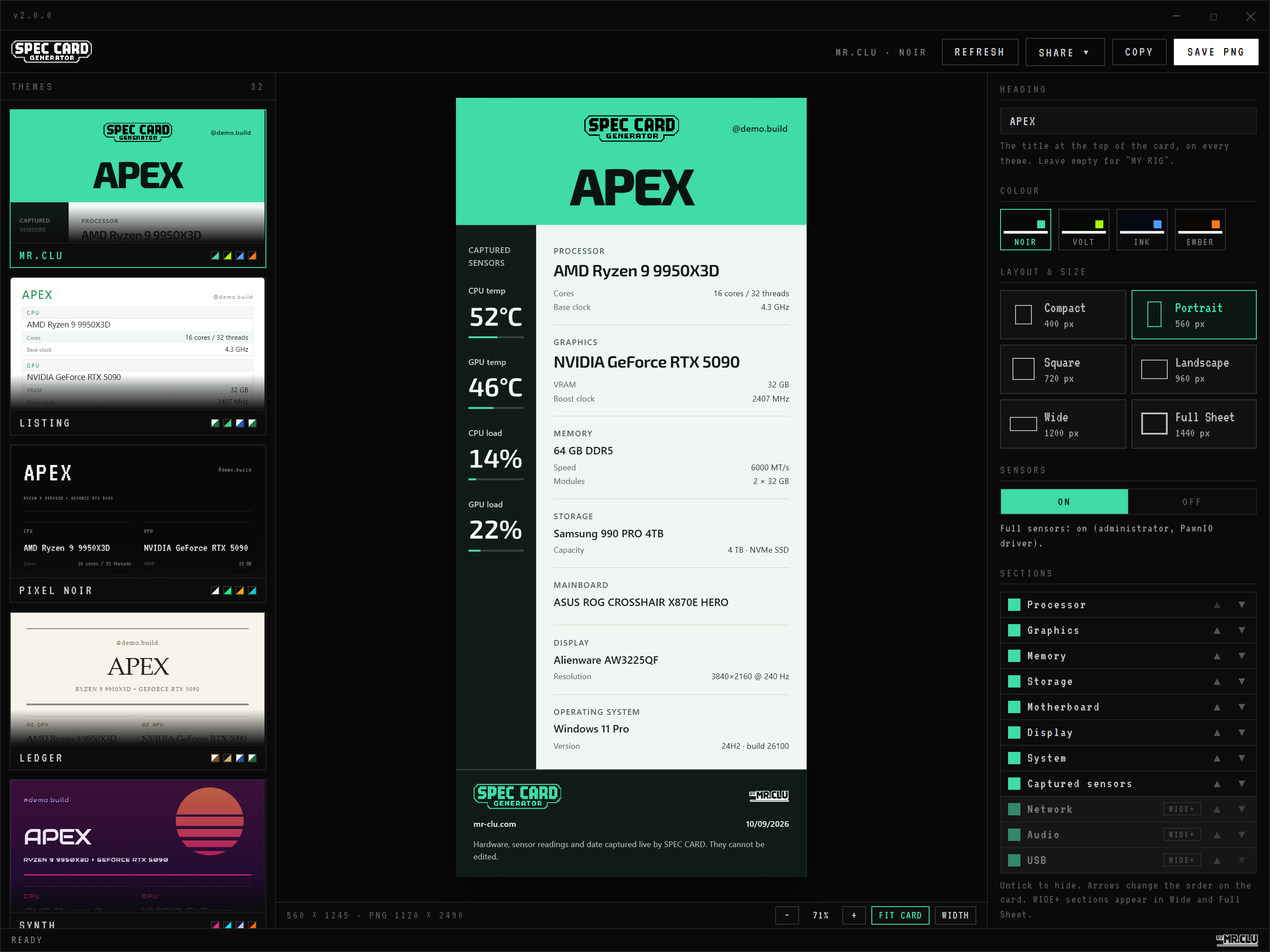
If the reason you're checking specs is to show them to someone, skip the screenshots. Spec Card Generator detects your CPU, GPU, RAM, storage, motherboard and display automatically and renders one clean card image you can save or paste straight into Discord. 32 themes, free. Basic hardware detection needs no administrator rights; full sensors use the optional PawnIO driver and administrator access. Hardware details stay on your machine.
On a locked-down work machine, methods 1 to 6 are the ones that will work. They install nothing and never ask for admin rights.